
Self-Service Guide
Reset Your Password
Already enrolled? Follow these steps to reset your Microsoft account password through the self-service portal — no IT call required.
Not enrolled yet? You must enroll before you can reset your own password. Follow the enrollment guide first →
1
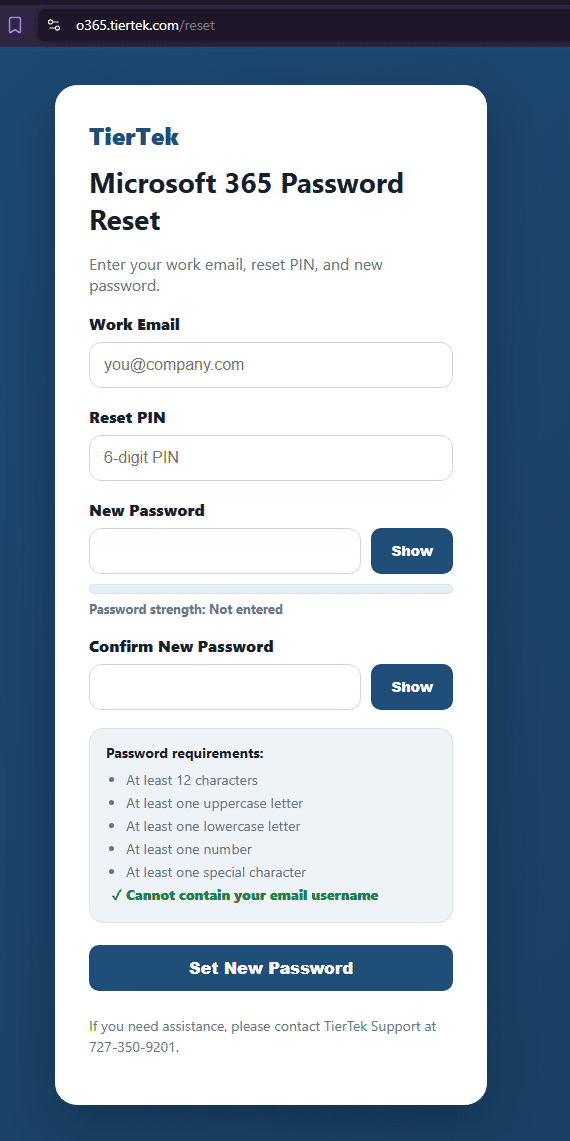
Open the password reset portal
Open your browser and navigate to o365.tiertek.com/reset and enter your username.
2
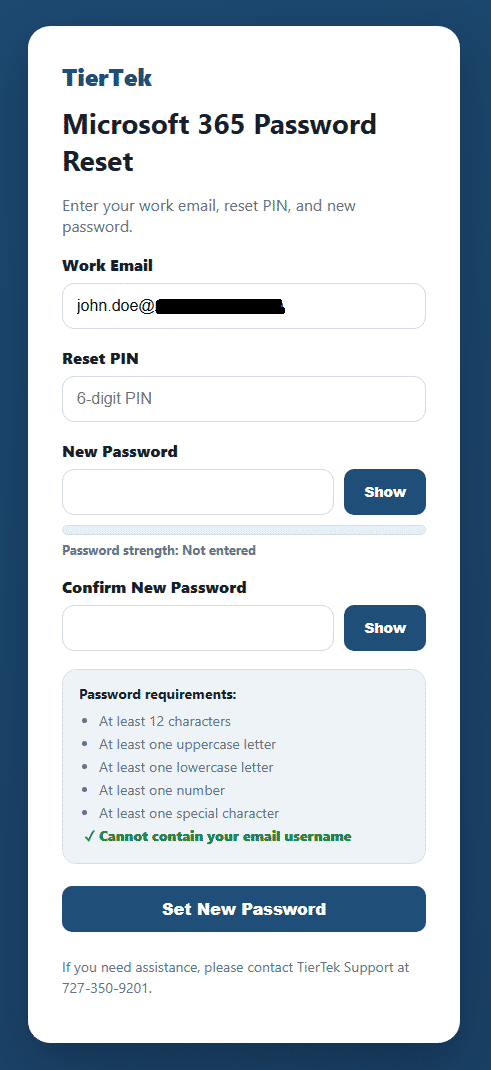
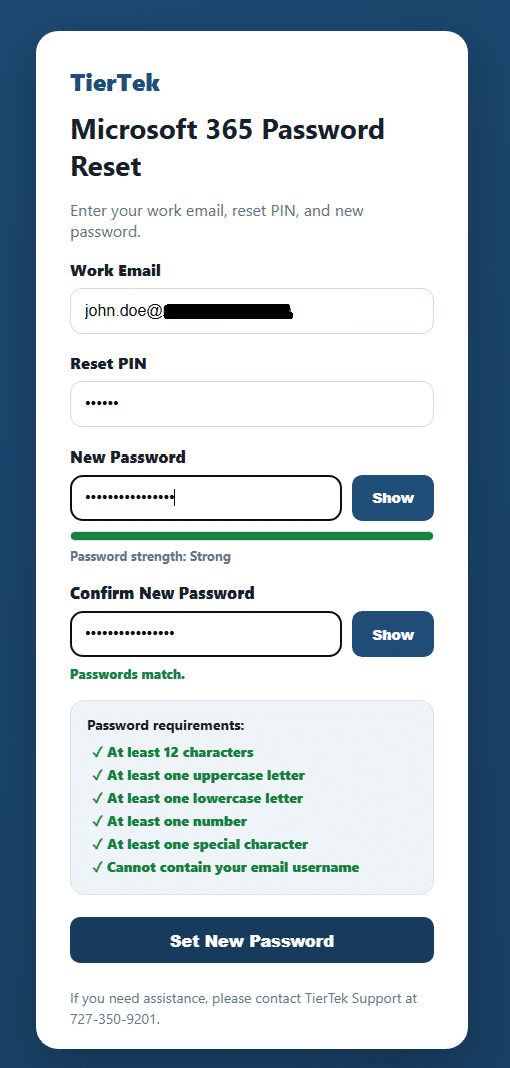
Enter your password reset PIN
Enter the 6-digit PIN you created during enrollment.
Forgot your PIN or not enrolled yet? Follow the enrollment guide →
3
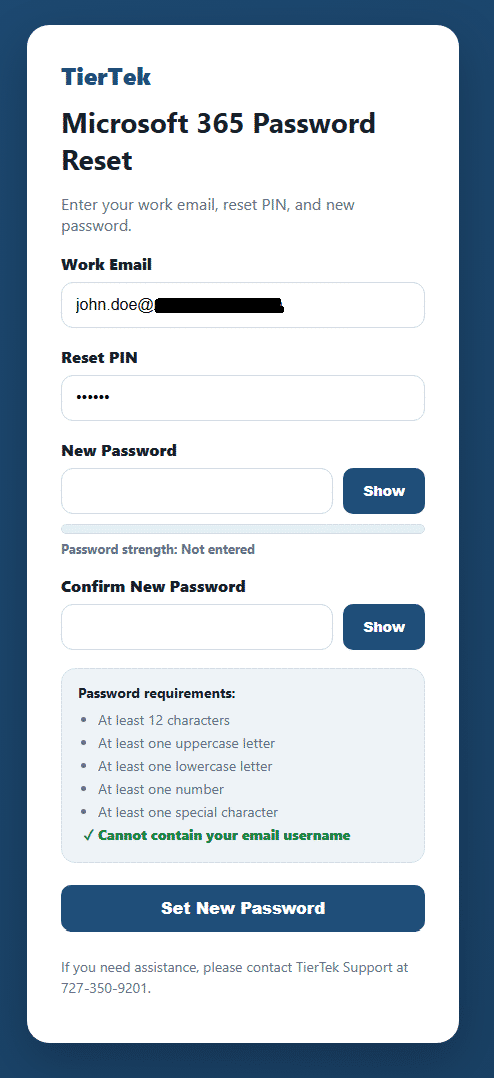
Enter your new password
Enter your new password. Read the password requirements shown on screen — if your password does not meet these requirements you will be asked to choose a more complex one.
4
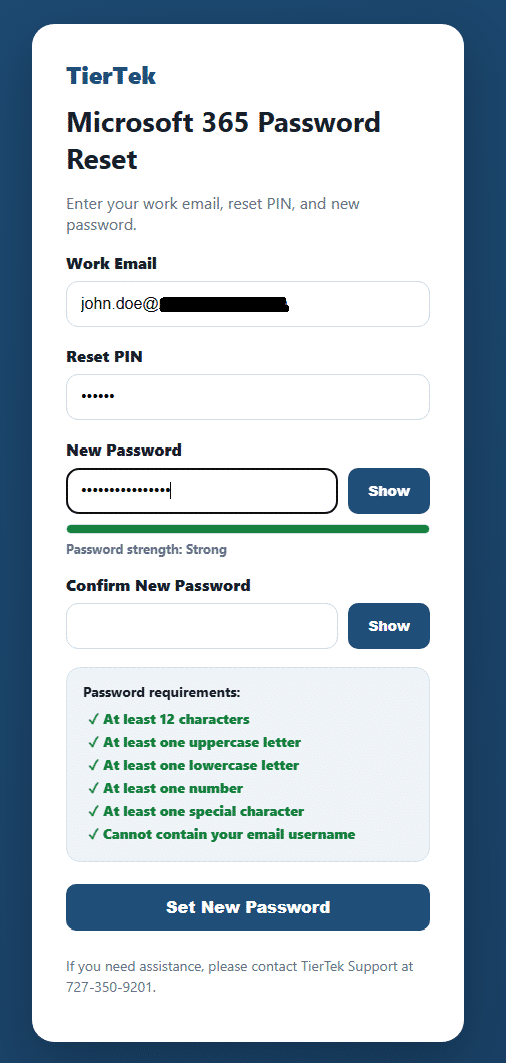
Confirm your new password
Re-enter your new password to confirm it.
5
Set your new password
Once you are done, click Set New Password.
6
Password reset complete
If your password meets the complexity rules you will see the confirmation screen.
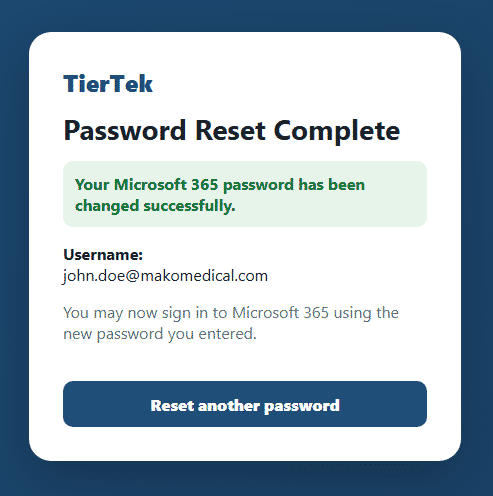
✓ Password Reset Complete! You can now log in to your Microsoft account with your new password.
Still locked out? Contact IT support at support@tiertek.com or call (727) 350-9201