
Self-Service Guide
Self-Service Password Reset
Enrollment Guide — follow these steps to enroll in the password reset portal so you can reset your own password at any time without contacting IT.
1
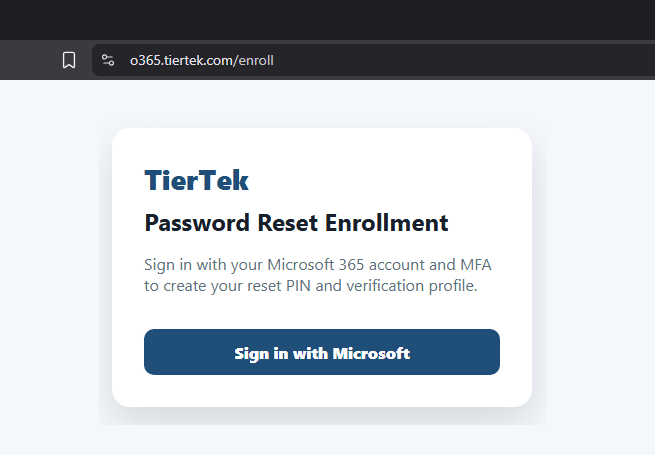
Open the enrollment portal
Open your browser and navigate to o365.tiertek.com/enroll, then select Sign in with Microsoft.
2
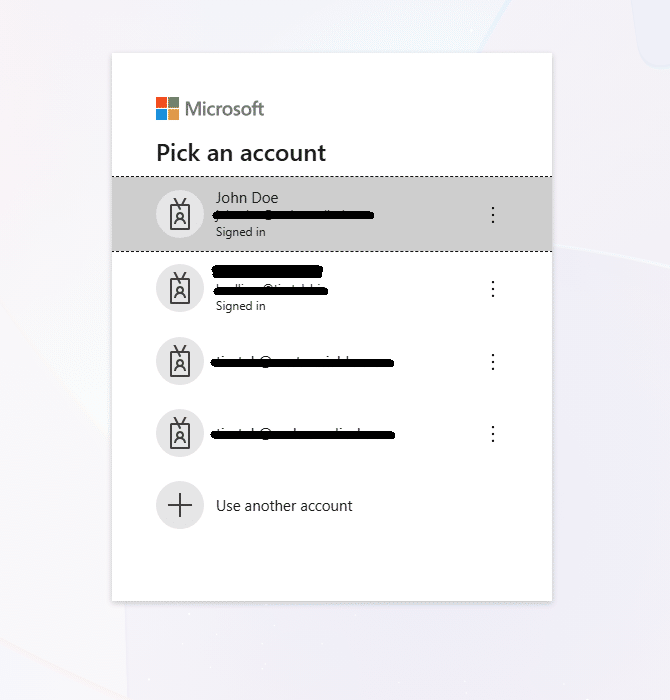
Select your Microsoft account
If your Microsoft account is listed, select it. Otherwise choose Use another account and sign in with your Microsoft work account.
3
Enter your password and approve MFA
Enter your password. An MFA request will be sent to the Microsoft Authenticator app on your phone. If MFA is not yet set up, you will be prompted to do so now.
Need to set up MFA first? Follow our step-by-step guide: MFA Setup Guide →
4
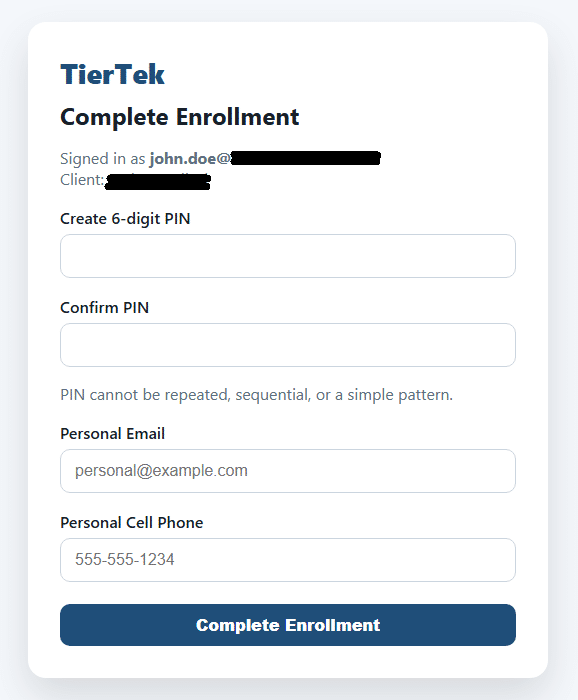
Create your 6-digit PIN
Enter a 6-digit PIN. All six digits cannot be the same, and they cannot be in ascending or descending order. Save this PIN — you will need it to reset your password in the future.
5
Enter your personal contact information
Enter your personal email address and personal cell phone number. If we receive a password reset request we will call your mobile or email your personal account to verify your identity.
6
Complete enrollment
When you are finished, select Complete Enrollment.
7
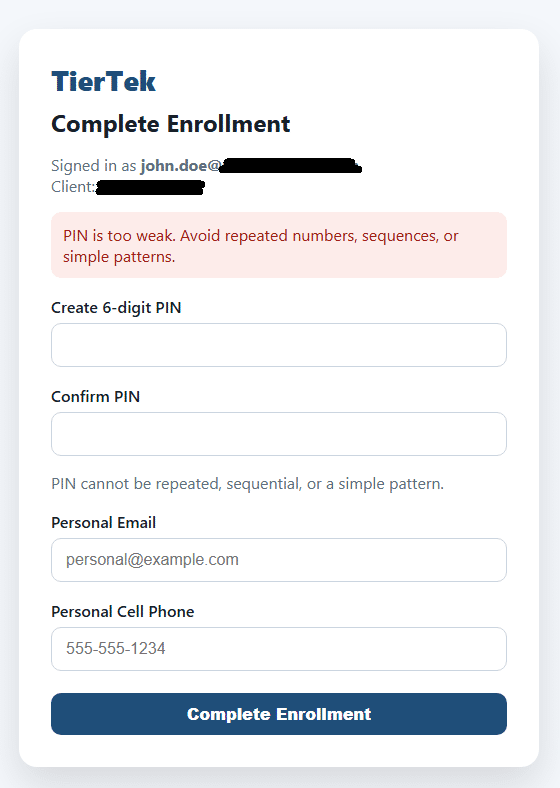
PIN too weak? Create a stronger one
If your PIN is too weak you will be prompted to create a more complex PIN and will need to re-enter your personal email and cell phone number.
8
Complete enrollment
When you are finished entering your stronger PIN and contact details, select Complete Enrollment again.
9
You are enrolled!
✓ You are now enrolled and can reset your own password at any time. Remember to save your PIN — it is required to reset your password.
Next Steps
- Reset Your Password — now that you're enrolled, use the portal to set a new password anytime
Need help? Contact our IT support team at support@tiertek.com or call (727) 350-9201